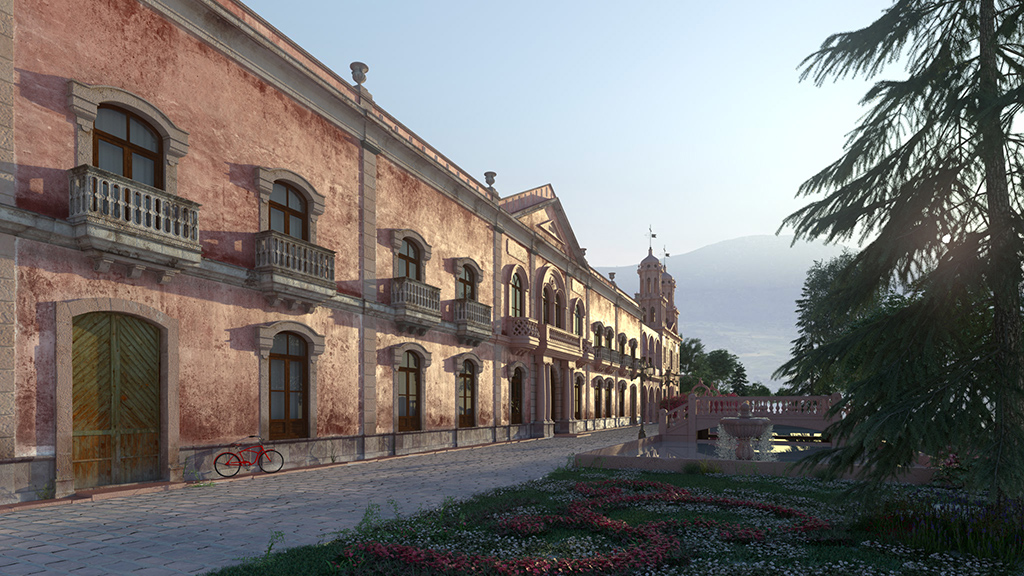
FluidRay
  • FREE TRIAL
  • Features
    • Technical Specs
    • Architectural Rendering
    • Interior Design Rendering
    • Jewelry Design Rendering
    • Product Design Rendering
  • Buy
  • Gallery
  • Resources
    • Contact Support
    • Help
    • Addons
    • Forum
  • Blog
  • Click to open the search input field Click to open the search input field Search
  • Menu Menu

How to Render Animations in FluidRay

June 10, 2021/in 3D Rendering, Animation, Architecture, Industrial Design, Interior Design, Jewelry Design, Tutorials & Training

In this tutorial we will show you how to quickly render camera animations in FluidRay.

If you are a designer, sometimes making a quick video is the most effective way to show your product to a client. Or, if you are an Architect, a camera walk-through can immerse your clients in the spaces you have created for them.

Making such videos is really easy in FluidRay.
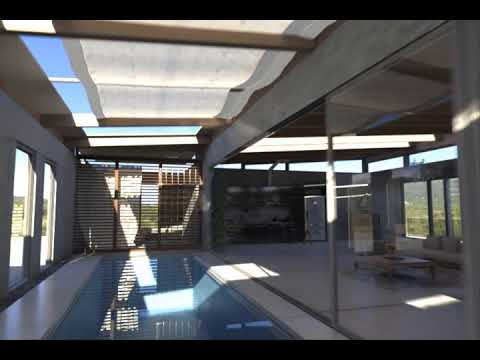
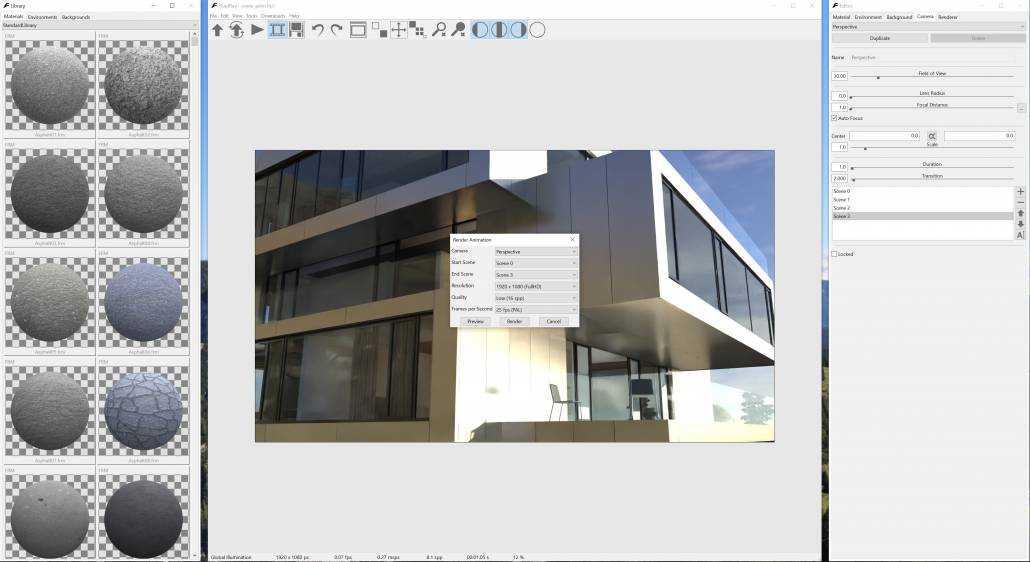
FluidRay 3.0 Animation Render

Start by loading your project, then navigate to the Camera tab on the Editor window that is located on the right.
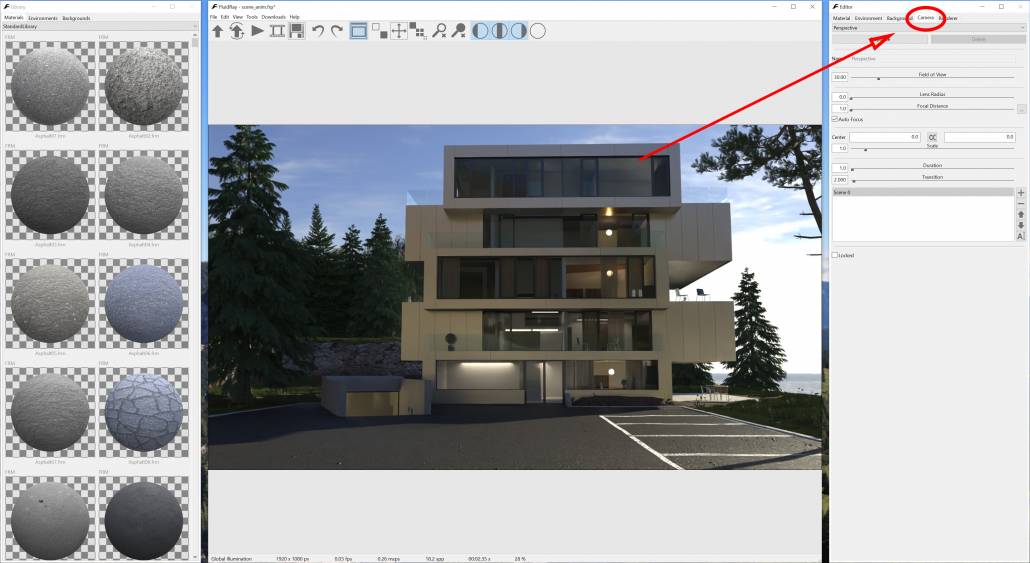
FluidRay Camera Tab

There are a few buttons on the bottom right of the panel that allow you to manipulate the different “Scenes”:
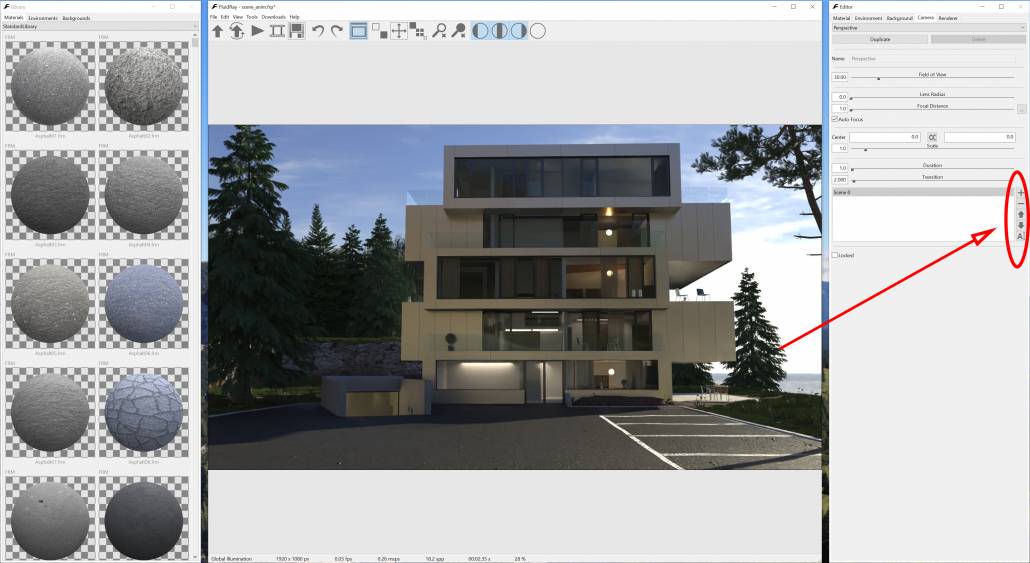
Scene buttons

A “Scene” is a point of view that your camera will go through. After you have added a few scenes with different point of views, FluidRay will automatically create an animation by transitioning between them.

Click on the “+” button to add a new scene, then move the camera to another point of view:
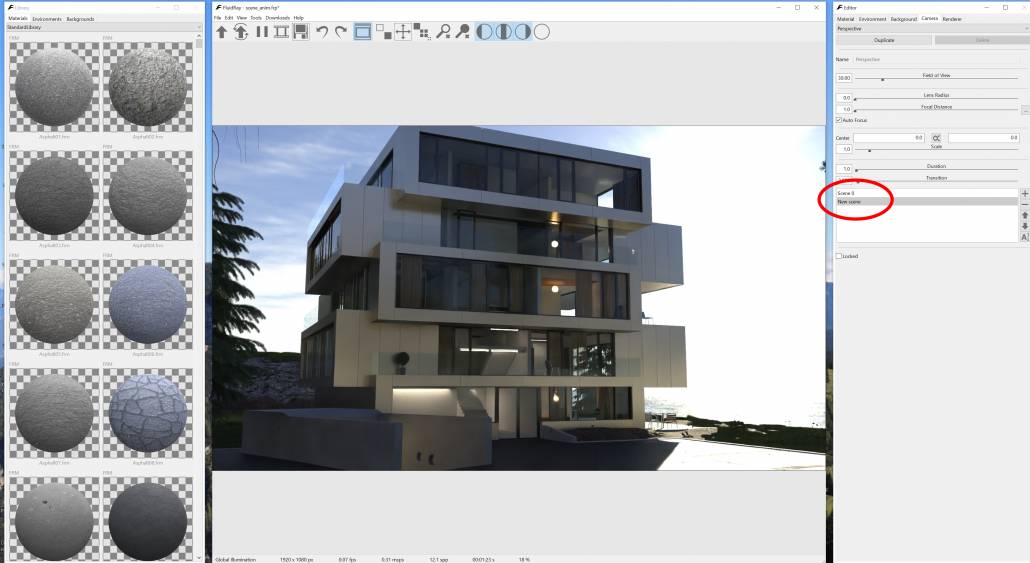
FluidRay Animation scene

Keep adding points of views to cover all the walkthrough.

You can also rename the scenes by clicking on the corresponding name or by clicking on the “Rename” button:
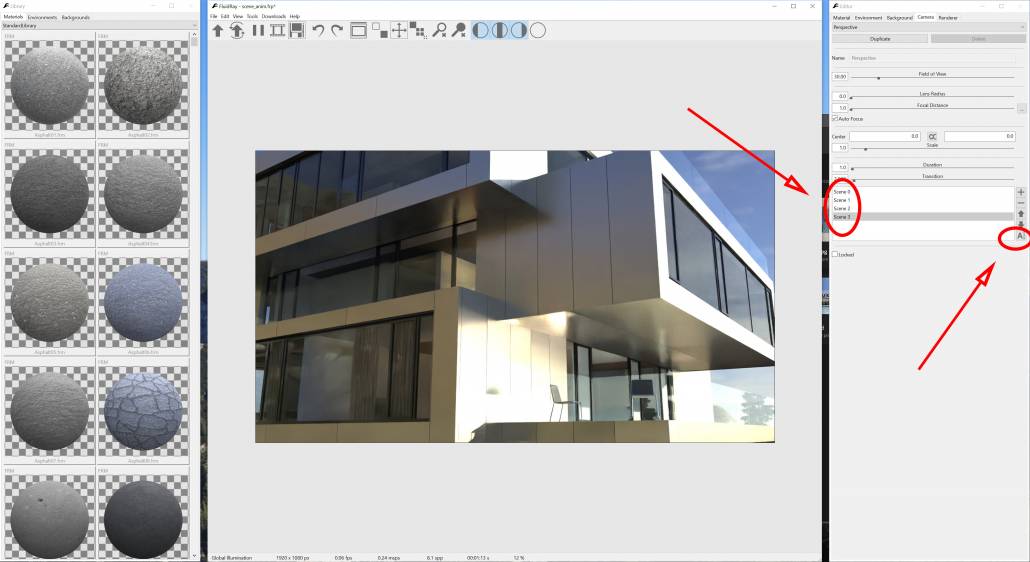
Animation Scene rename

Two parameters are important for animation – Transition and Duration:
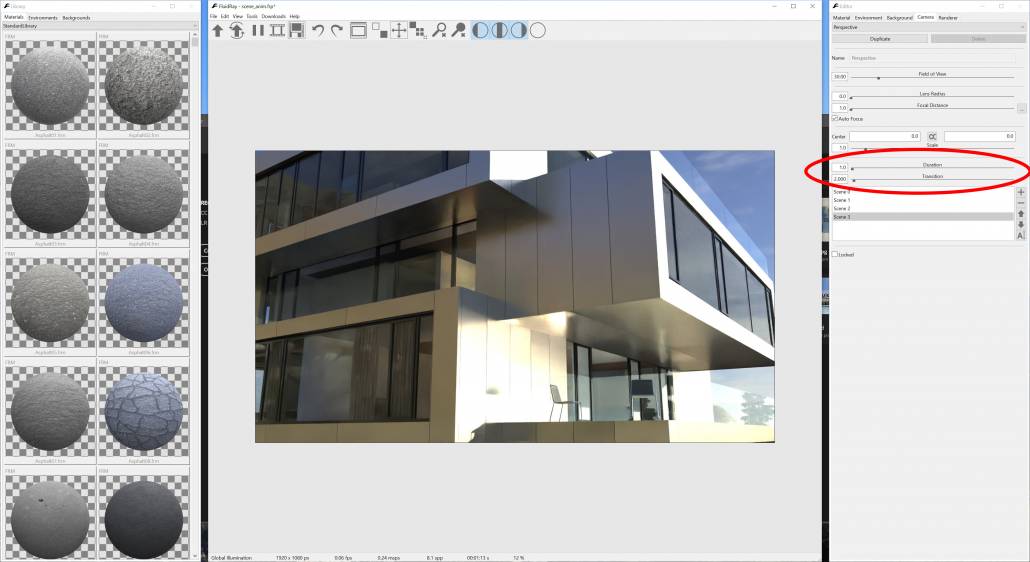
FluidRay Animation duration and transition
  • Duration: how long, in seconds, the camera stays fixed in the same point of view
  • Transition: how long, in seconds, the camera takes to go from a point of view to the next

We can now ready to render our animation. To access the render animation dialog, press the “Reel” button on the main toolbar or go to the menu Tools -> Render Animation:
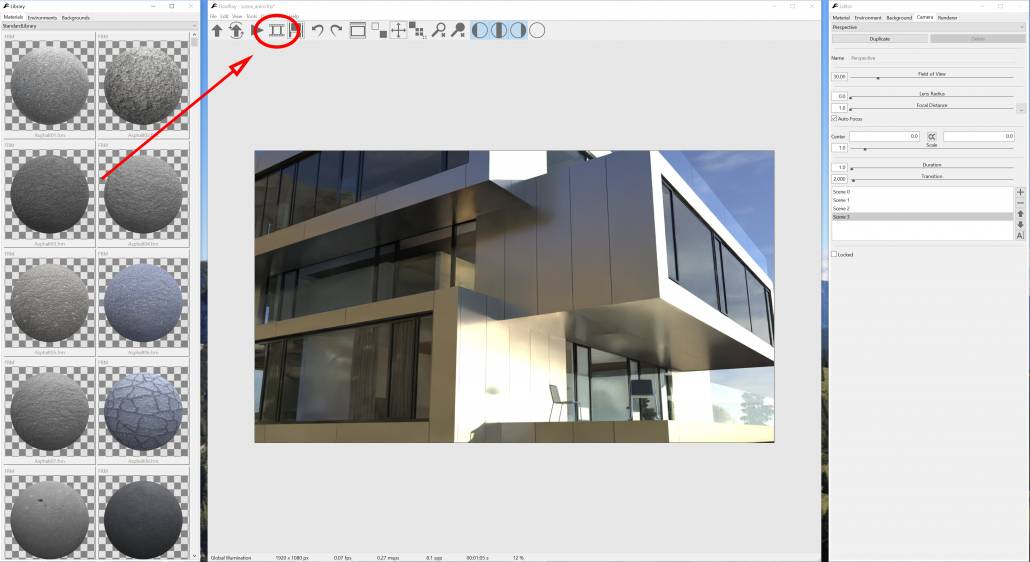
Render Animation Button

The Render Animation dialog appears:

FluidRay Animation Dialog

The following options are available in the Render Animation dialog:

  • Camera: the camera to be used for the animation
  • Start Scene: the scene (point of view) where the animation starts
  • End Scene: the scene (point of view) where the animation ends
  • Resolution: animation resolution. The smaller the resolution the less time it will take to render the animation
  • Quality: the samples per pixels used to render the animation. Lower values will result in lower quality but quicker render times.
  • Preview: the preview button will show a quick preview of the animation, useful to check the animation before starting the final render.
  • Render: the render button starts rendering the animation.

By clicking the Render button you’ll be asked the location where to save the rendered animation:
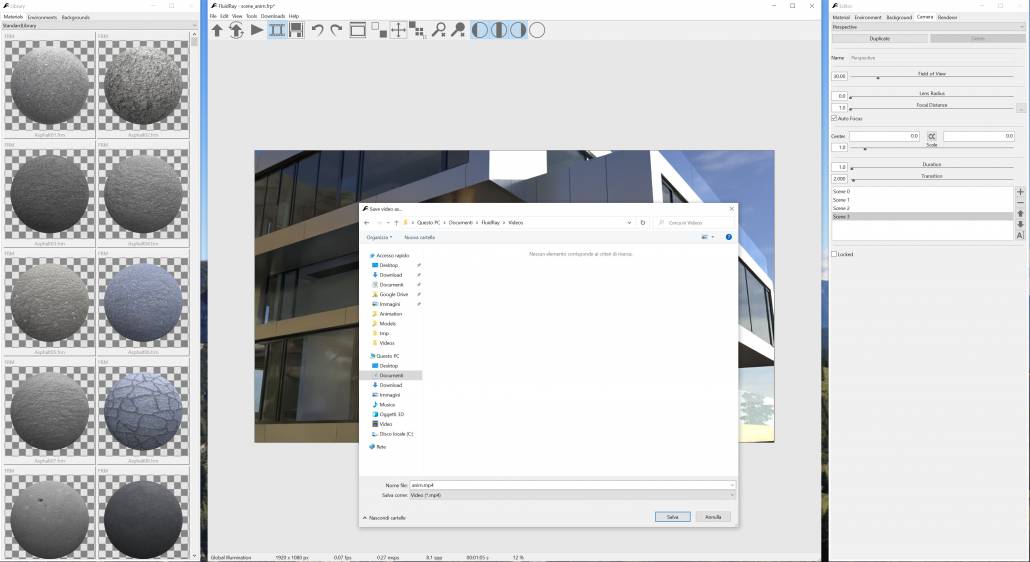
FluidRay save animation

Note that when selecting the location where to save the video, it’s also possible to decide if to save the animation as a video file (.mp4) or as multiple image files to be joined together at a later time.

This concludes the tutorial. If you have questions, please post them on our Discussion Forums.

If you would like to try FludRay, download the FREE TRIAL.
https://www.fluidray.com/wp/wp-content/uploads/2020/05/render_1_pp-1.jpg 1080 1920 nicola /wp/wp-content/uploads/2019/09/siteLogo4.png nicola2021-06-10 09:02:312021-06-18 10:14:59How to Render Animations in FluidRay

How to Create an Architectural Rendering With FluidRay

March 15, 2021/in 3D Rendering, Architecture, Tutorials & Training
Read more
https://www.fluidray.com/wp/wp-content/uploads/2020/06/home_slider_progressive_2_md.jpg 1080 1920 Julie Hobart /wp/wp-content/uploads/2019/09/siteLogo4.png Julie Hobart2021-03-15 22:12:412021-03-15 22:12:45How to Create an Architectural Rendering With FluidRay

Customer Spotlight: First Experiences of FluidRay ‐ A Designer’s Perspective.

November 24, 2020/in 3D Rendering, Architecture, Interior Design, Rhino, Rhino, SketchUp
Read more
https://www.fluidray.com/wp/wp-content/uploads/2020/11/View-3c_Photoshop.jpg 1080 1920 Mark Anders /wp/wp-content/uploads/2019/09/siteLogo4.png Mark Anders2020-11-24 12:38:292020-11-24 12:38:35Customer Spotlight: First Experiences of FluidRay ‐ A Designer’s Perspective.

Why FluidRay Is the Best Rendering Software

November 12, 2020/in Architecture, Industrial Design, Interior Design, Product Design

Until recently, architects, interior designers, jewelry designers, and other product designers relied on 2D and 3D drawings to share with their customers design ideas. These drawings provided details like dimensions, heights, sizing, material thicknesses, and surfaces; for the most part, these details sufficiently got design ideas across. 

Today, designers are able to greatly enhance their 3D models with photorealistic renderings. Renderings enable designers to showcase their work and effectively communicate ideas to customers. Just imagine, sharing a realistic image with customers instead of a simple model and really getting down to the finer details of a design. As a result, designs are finalized more quickly and customers are delighted.

What is Rendering

Rendering is the process that turns a 3D model into a highly realistic image. 

Rendered images are particularly useful to designers because they illustrate an idea rather than something that already exists. These images give the impression though that they are real which, in turn, gives customers a true idea of what the final product will look like. For instance, when applying materials such as hardwood flooring to a design, customers can make decisions early in the project saving time and money.

FluidRay Rendering Software

FluidRay boasts several characteristics that set it apart from other rendering applications and make it the best rendering software for designers. 

Compatibility with SketchUp

FluidRay’s built-in compatibility with SketchUp enables designers to create 3D models in SketchUp and then easily import them into the FluidRay interface. 

Design in Real Time

Quickly share multiple design options and adjust designs on the fly. Decisions are made quickly and efficiently to shave time off your projects.

Save Money

Design changes and issues are discovered early, before construction begins or materials are purchased, to avoid costly delays. 

Create Detailed Designs

Clients can better visualize the entire project and sample different items like materials, fixtures, paint colors and lighting.

Communicate Ideas

Communicate design ideas and modifications to your clients quickly and effectively to keep projects moving forward.

Impress Clients

Create attention grabbing design presentations that highlight your vision and abilities winning over even the most demanding of clients.

Learn Quickly

FluidRay’s intuitive interface and straightforward menus make rendering fast and easy to learn.

Are you ready to learn rendering for your next design project? Our pricing is inexpensive and we offer a free trial so you can see for yourself how fast and easy it is to turn your 3D models into realistic images that will inspire your clients. To learn how to create beautiful renderings in FluidRay, we provide a library of training tutorials. Experience the good side of rendering today!

credit: Mahdi AR
https://www.fluidray.com/wp/wp-content/uploads/2019/10/render_1_pp.jpg 900 1668 Julie Hobart /wp/wp-content/uploads/2019/09/siteLogo4.png Julie Hobart2020-11-12 16:39:042020-11-12 16:39:08Why FluidRay Is the Best Rendering Software

5 Expert Tips for a Beautiful Architectural Rendering

August 20, 2020/in 3D Rendering, Architecture, Lighting, Materials

Make no mistake about it, creating the perfect architectural rendering can be time consuming and frustrating. The amount of detail, materials, colors, and textures that go into creating a beautiful rendering can quickly become overwhelming. With that said, a few simple tips can help take your architectural rendering to the next level so you can effectively communicate your designs and architectural talents to your clients. When done right, renderings will set you apart from your competition and demonstrate your capabilities. The FluidRay team has curated our 5 top expert tips to help you create beautiful architectural renderings.

1. Create Believable Surroundings

To create a realistic architectural rendering, include believable surroundings to help set the feeling of the image. Selecting an appropriate background will draw the viewer into the rendering and help them experience the details of the final architectural design. Consider details like sky, ground, natural bodies of water, trees, and other nearby structures and aim for simple, yet accurate, details. Use natural colors and minimize complicated scenes for an architectural rendering that will impress viewers and highlight your architectural design abilities. 

Daylight Exterior Architectural Rendering with FluidRay
Structure with natural surroundings

2.  Illuminate, Illuminate, Illuminate

One of the most important aspects of an architectural rendering is the lighting. You’ll want to pay attention to both environmental lighting and artificial lighting. Creating these lighting effects in FluidRay is fast, easy, and produces beautiful results that will impress your clients! Get this right and your rendering is realistic and beautiful. Done incorrectly though, your rendering is awkward. Luckily, with a little attention, illuminating your architectural rendering properly is easy. In fact, this short architectural rendering tutorial explains how to set lighting in your FluidRay rendering. Note, that while this tutorial starts with a Rhino 3d model, FluidRay is compatible with most 3d modeling software applications.

Architectural Rendering in Rhino and FluidRay


3. Take Advantage of Caustics

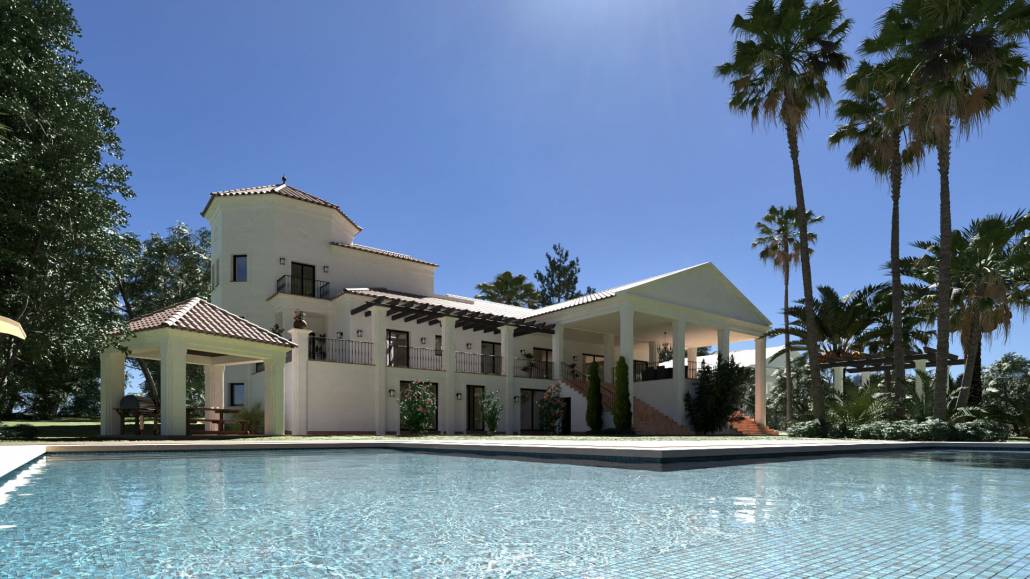
Caustics are the flickers of light that come off water and are a significant contributor to lighting in the real world. In rendering, these flickers are often quite tricky to perfect. Designers will often avoid the need for caustics by leaving water out of their renderings. Including caustics though makes a rendering that much more believable. FluidRay handles caustics effectively and efficiently, allowing you to take advantage of this important lighting detail. Go ahead and include fountains or ponds in your architectural rendering!

FluidRay exterior render with pool
Outdoor pool with caustics

4. Refine Textures and Materials

An architectural rendering incorporates many colors, textures, and materials. Certain materials and textures will look different depending on the situation and especially the time of the day. For example, if your rendering is intended to look like a photograph shot during the morning golden hour, you’ll want the rendering to look bright and warm and not “orangey”. Refine textures and materials to look realistic to the environment and include the appropriate level of dullness or shine. This tutorial describes how to apply textures and materials to your rendering. Because FluidRay renders in real-time, you can quickly adjust textures and materials in the viewport until the rendering looks just right.

SketchUp Exterior Rendering with FluidRay


5. Determine Your Focal Point/Camera Position

Setting the focal point of a rendering to be viewed from a specific angle or point of view allows you to create a certain tone and more natural look. Perhaps you want your image to be viewed from above or from an angle. Or, perhaps you want to focus on a small portion of the building to highlight a specific feature. Consider what you are trying to emphasize in your rendering and choose a focal point accordingly. 

Rendered in FluidRay by Mark Dimarzio

FluidRay helps architects easily create beautiful architectural renderings. If you want to experience the power of how FluidRay can help you create expert  architectural renderings, download our software for a free trial. Our pricing is inexpensive and we offer an extensive library of tutorials so anyone can experience the good side of rendering!

https://www.fluidray.com/wp/wp-content/uploads/2020/07/render_2_pp.jpg 1296 1920 Julie Hobart /wp/wp-content/uploads/2019/09/siteLogo4.png Julie Hobart2020-08-20 19:20:542020-08-20 19:20:585 Expert Tips for a Beautiful Architectural Rendering

Our 10 Favorite 2020 Software Renderings (so far)

July 16, 2020/in 3D Rendering, Architecture, Interior Design, Jewelry Design, Product Design

Make no mistake about it – rendering software will bring your 3d model to life. Architects, interior designers, jewelry designers and other product designers rely on beautiful renderings to communicate designs to their clients. Clients love viewing renderings because they get a reliable preview of the final product. 

2020 is proving to be a year with fewer events, fewer get-togethers, and fewer travels. But it is NOT a year with fewer renderings. FluidRay is proud to share our 10 favorite renderings of 2020 (so far). 

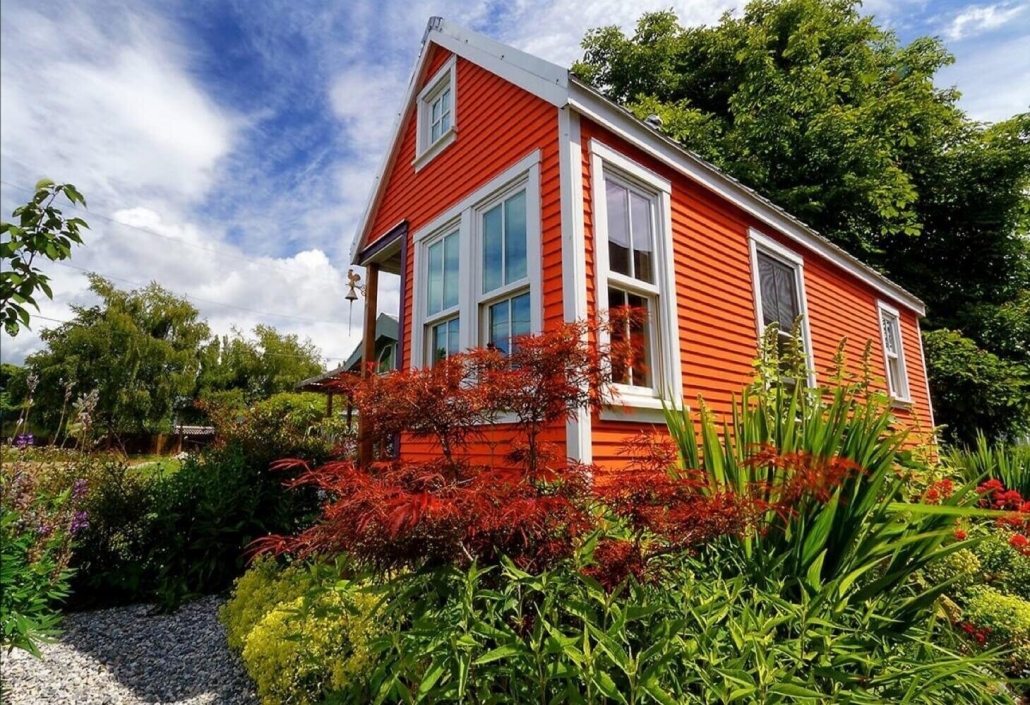
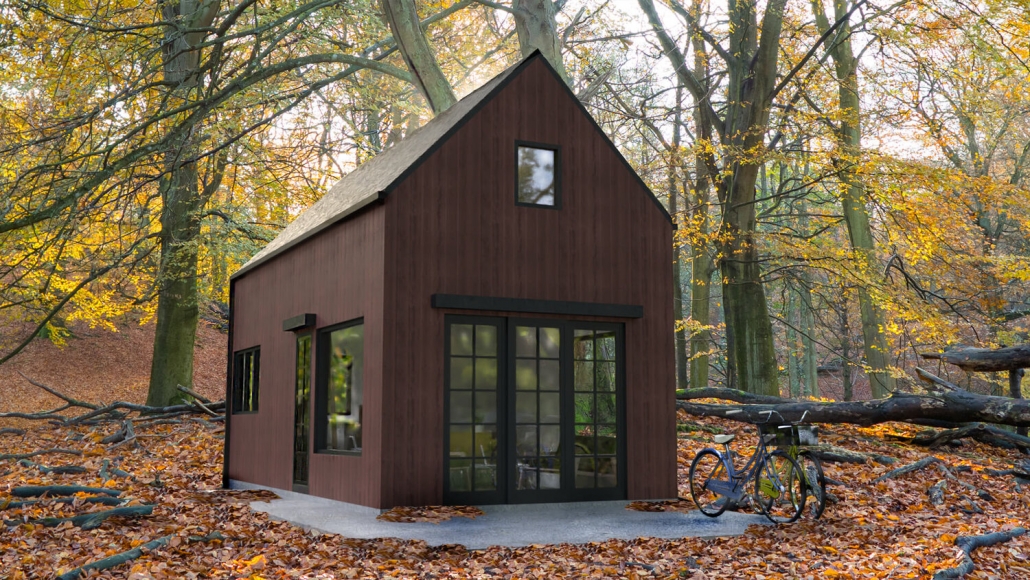
1. Small House

architectural rendering

Why we love this rendering: This realistic architectural rendering highlights the flexibility of FluidRay. While this house is located in a garden setting, the designer can quickly change the materials to meet the needs of a customer interested in a different environment. Credit: https://smallhousecatalog.com/

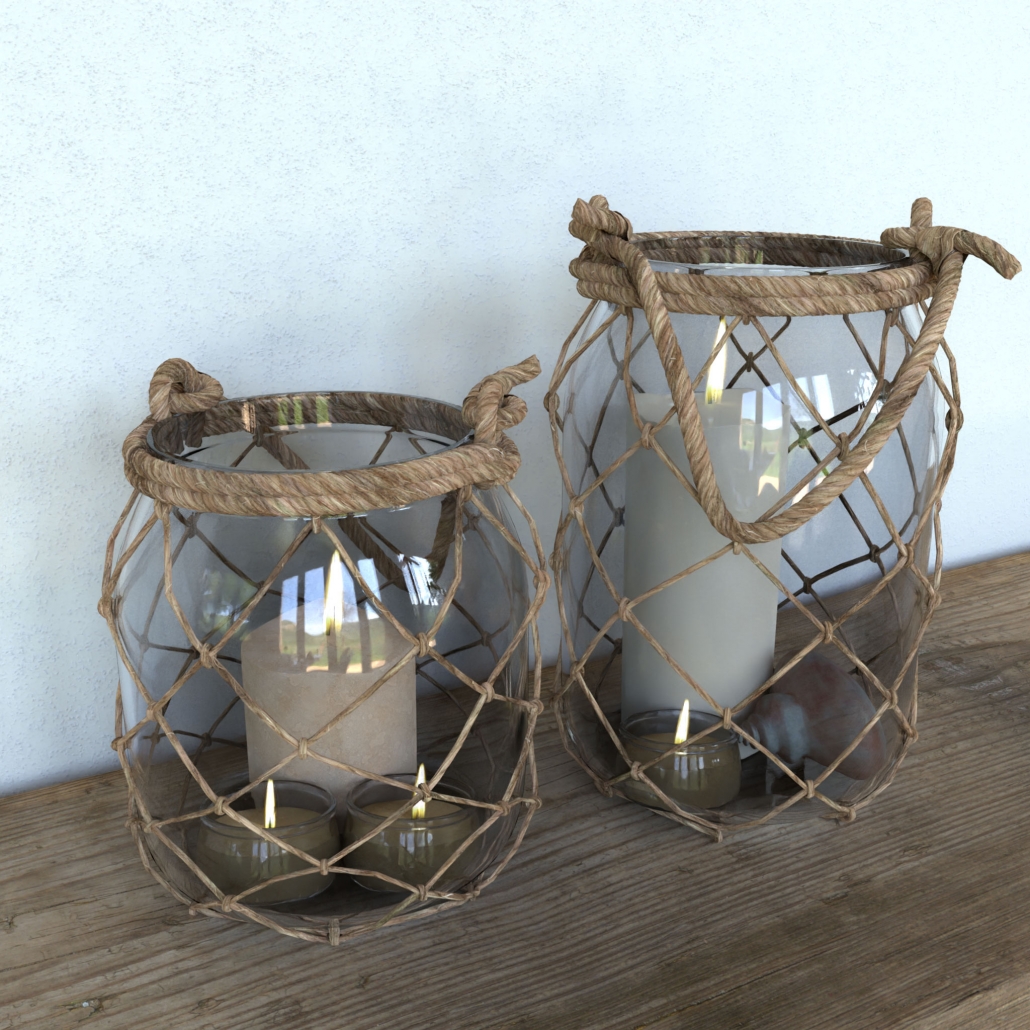
2. Candles Behind Glass

Candles rendering with FluidRay

Why we love this rendering: This image shows off the lighting powers of FluidRay. Notice the light from the candle through the glass while also the window reflection. This rendering showcases the power of FluidRay. 

3. Fast Car

Porsche rendering with FluidRay

Why we love this rendering: The metallic materials and curves of the car make this rendering look like a real image. Can’t you imagine yourself on a windy road right now? 

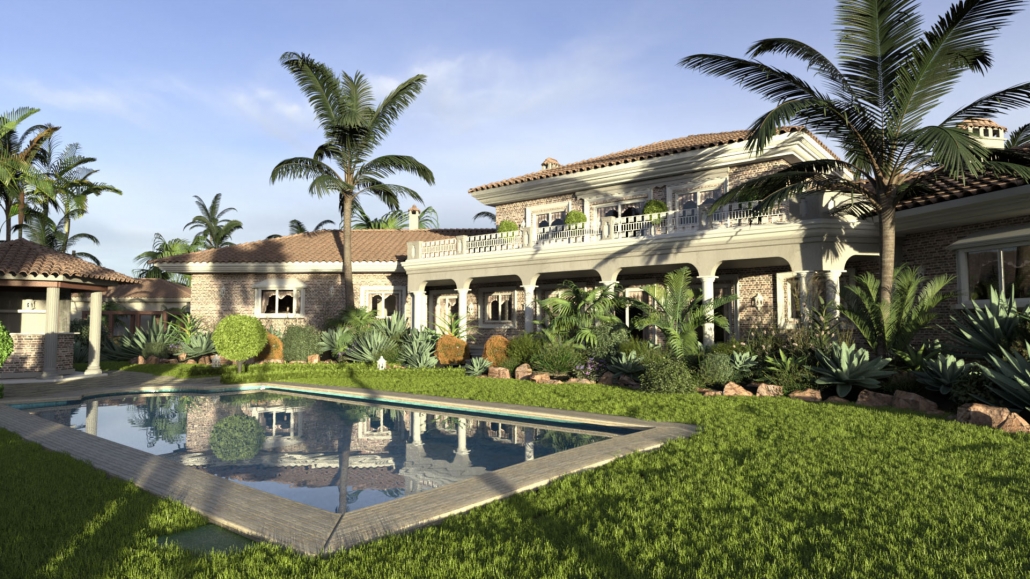
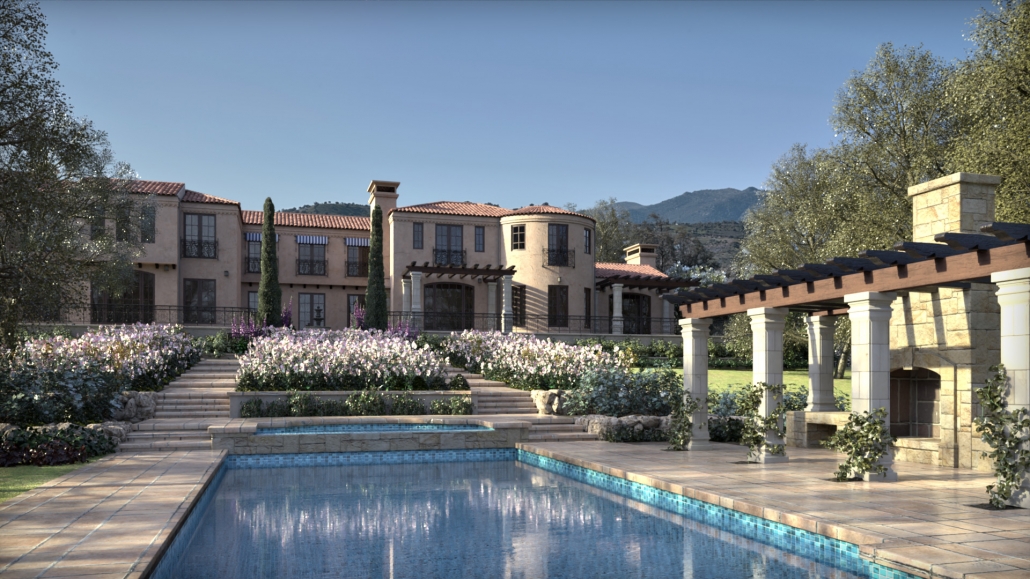
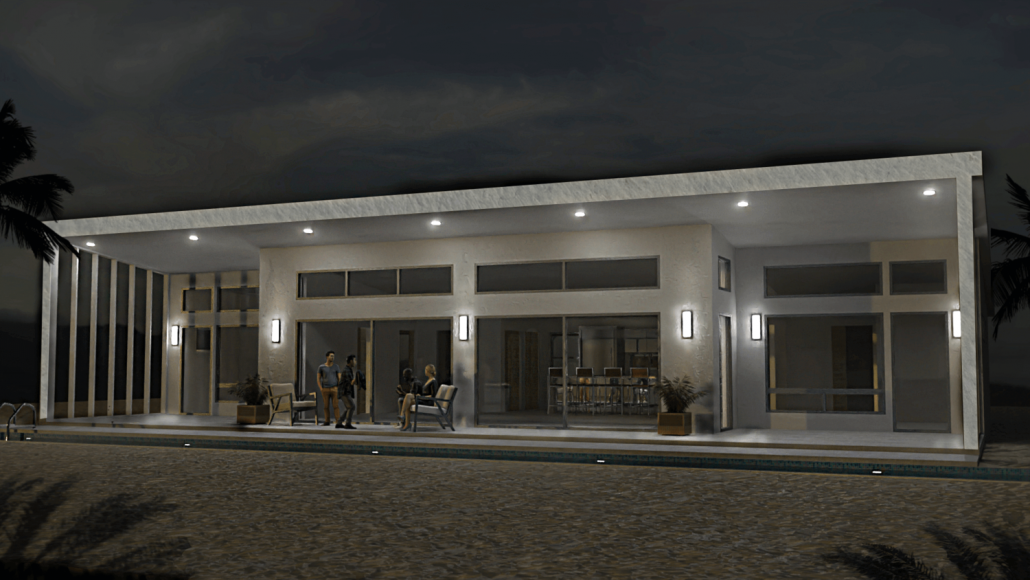
4. Villa with Pool

FluidRay exterior rendering

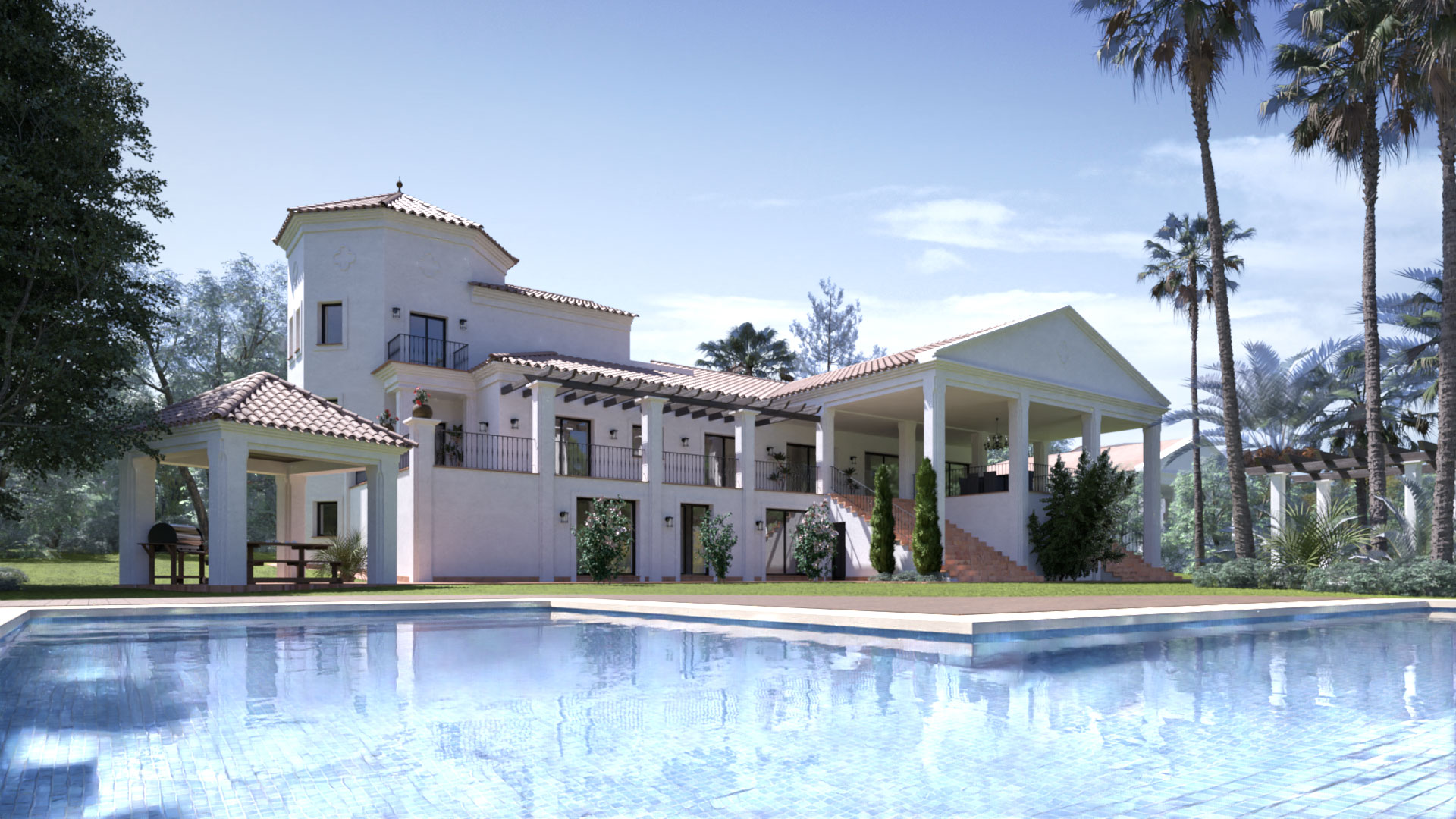
Why we love this rendering: Check out the shadows and caustics in this rendering. The pool looks so inviting. A+

5. Sunset

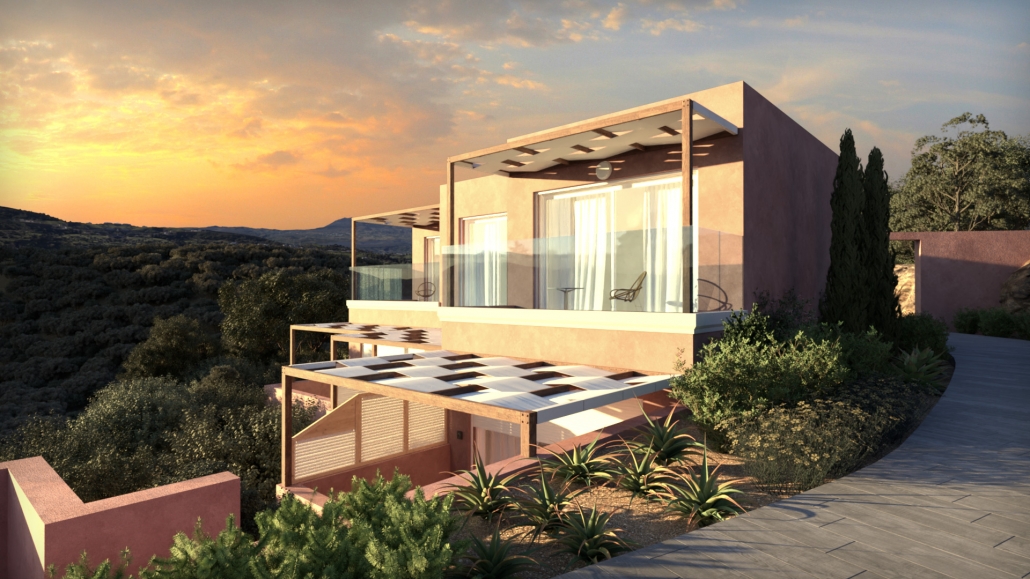
Rendered in FluidRay by Marco Piva

Why we love this rendering: The glimmer from the sunset lights up this hillside house just right. Photo credit: Marco Piva

6. Kitchen Interior Design

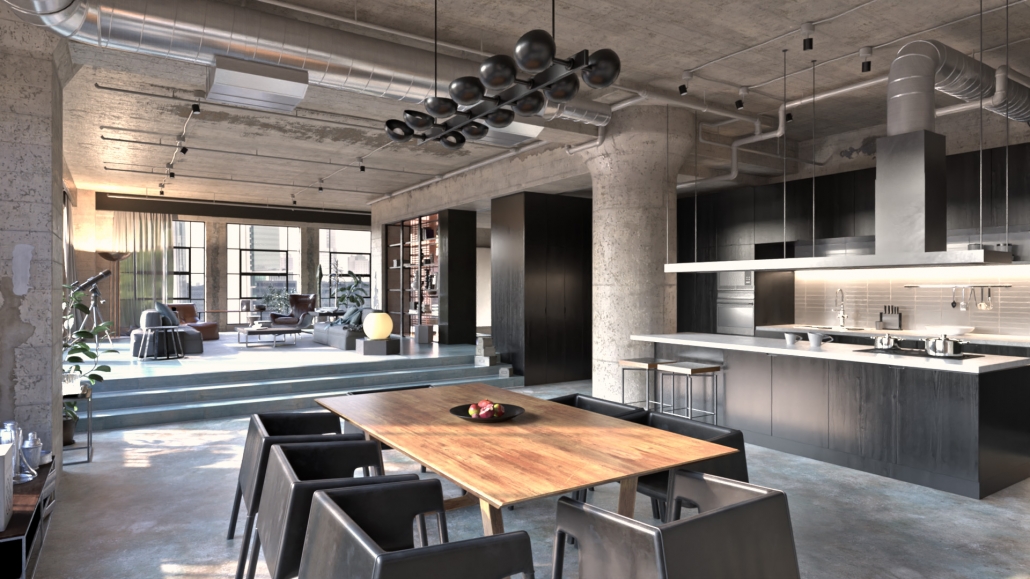
Living Room Render with FluidRay

Why we love this rendering: This beautiful space involves interior lighting (kitchen lights and lamps) as well as sunlight streaming in through the glass windows. Interior designers take notice! 

7. Textured Wall

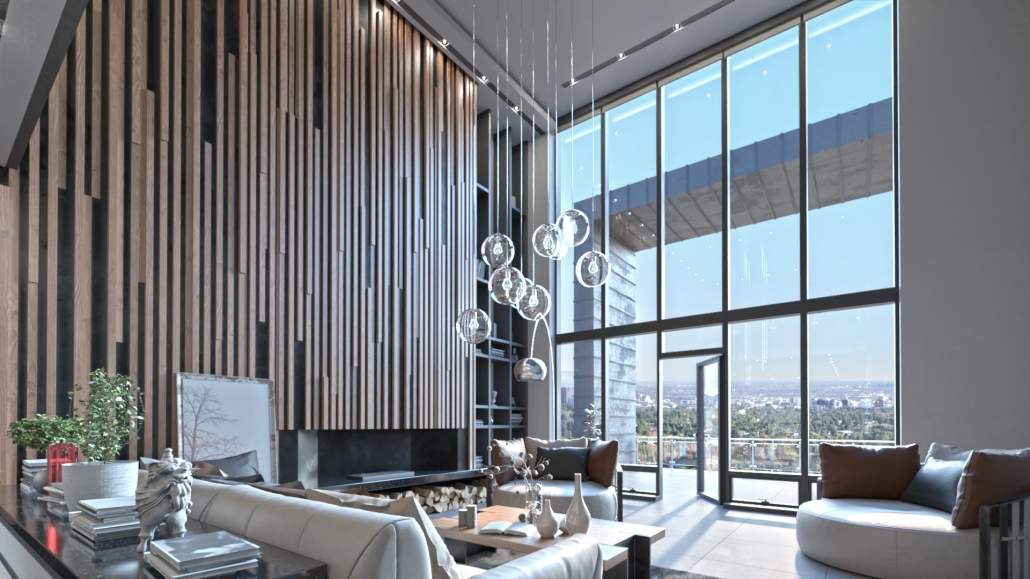
Interior rendering with FluidRay

Why we love this rendering: This interior rendering does a nice job with the materials – particularly the textures on the wall. We also love the realistic view of the horizon.

8. Stone Walls

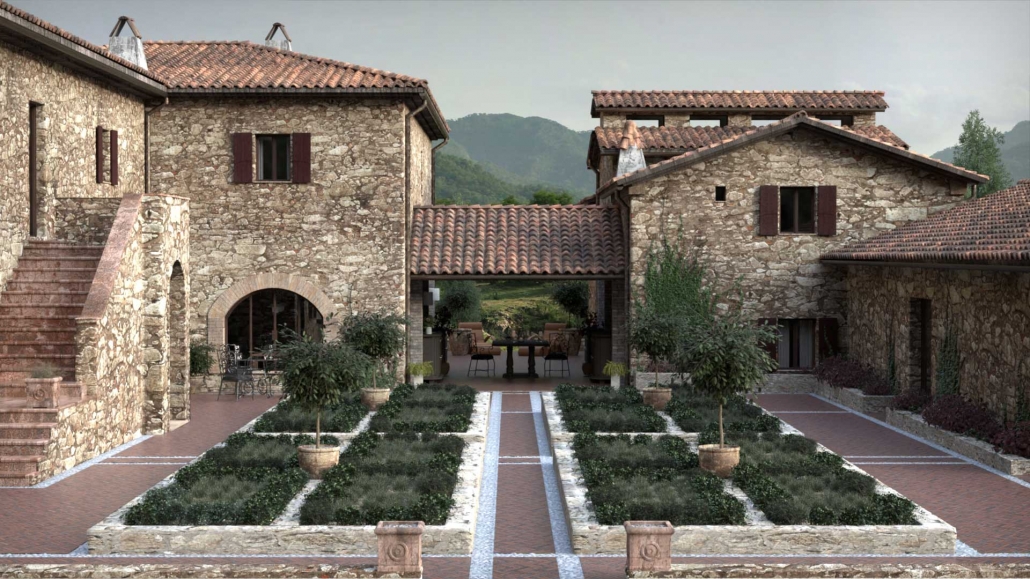
Exterior rendering with FluidRay

Why we love this rendering: The stone walls and tile roofing provide a level of detail that any designer can appreciate.

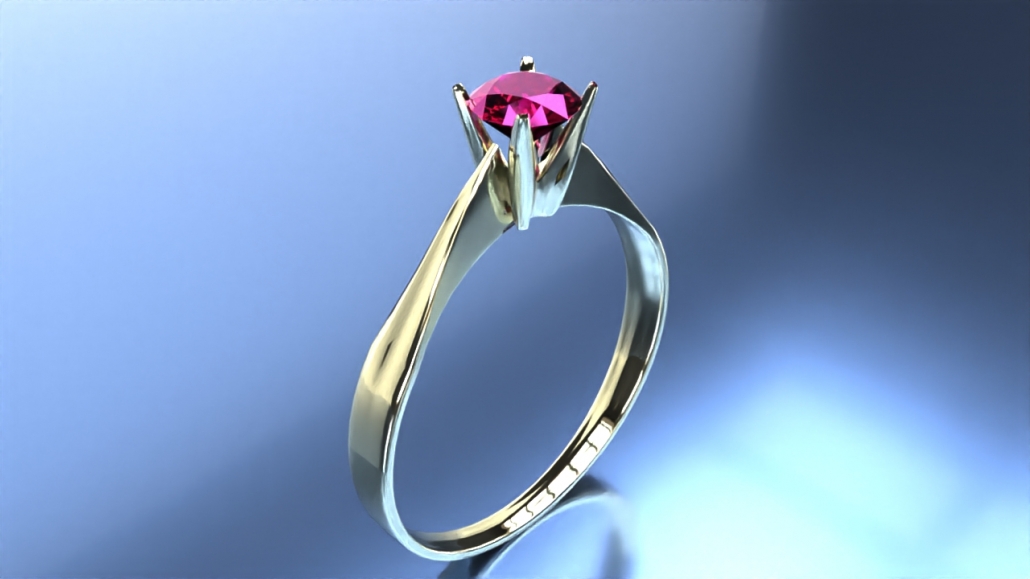
9. Engagement Ring

Engagement ring rendering width FluidRay

Why we love this rendering: The materials on this engagement ring perfectly reflect the light, giving it a very realistic look. 

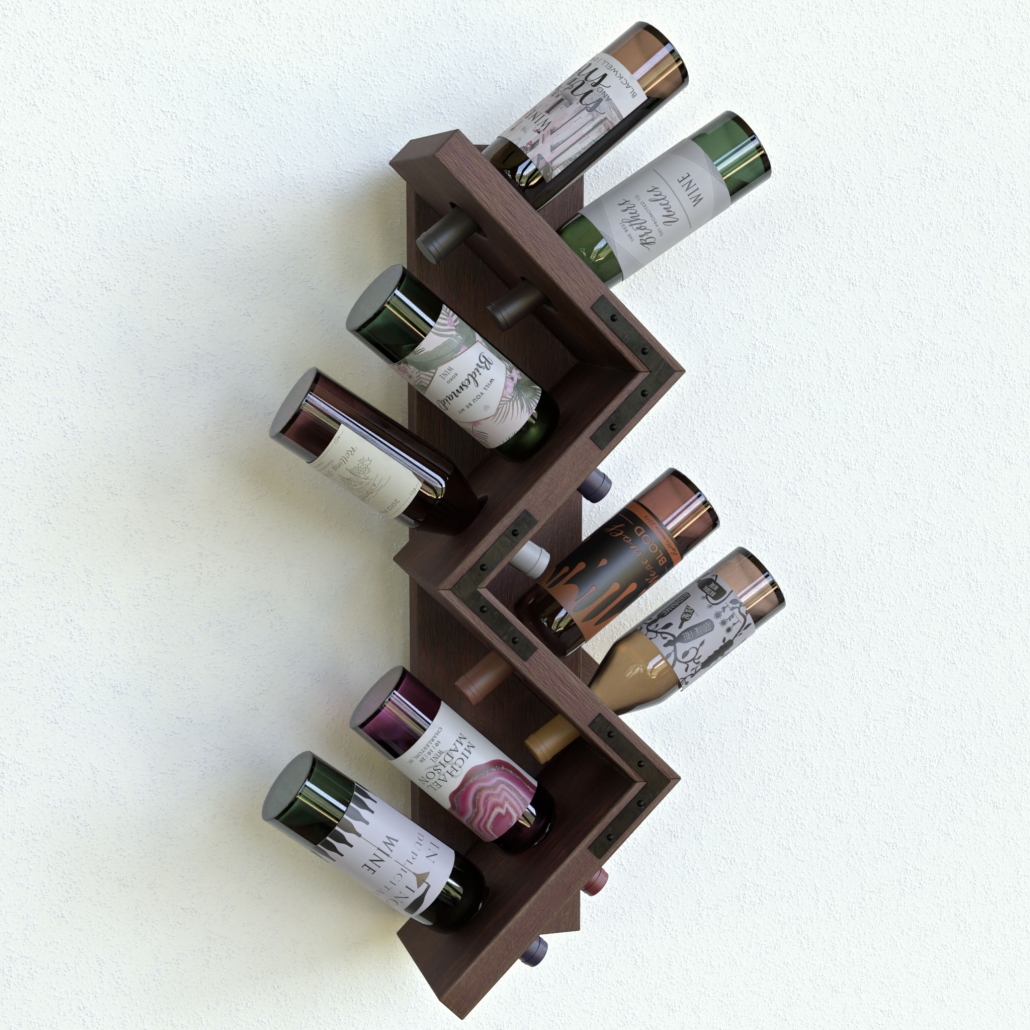
10. Contemporary Shelf

Bottle holder rendering with FluidRay

Why we love this rendering: This shelf highlights how helpful a rendering is for a designer to depict the different materials available. Imagine this shelf available in wood, metal or plastic. 

As you can see, these 10 renderings really bring designs to life. Do you have a favorite rendering you’ve created with FluidRay? Our team would love to see it and share it with our followers. Please submit your renderings here. Are you interested in trying FluidRay for free? FluidRay is easy to learn and we offer a free trial to get you started. 

try for free

FluidRay’s extensive features, easy-to-use interface, quick rendering capabilities, affordability, stunning designs, and modeling software compatibility make it the perfect rendering software for designers. Our pricing is inexpensive so anyone can experience the good side of rendering!

https://www.fluidray.com/wp/wp-content/uploads/2015/07/render_1_pp.jpg 1080 1920 Julie Hobart /wp/wp-content/uploads/2019/09/siteLogo4.png Julie Hobart2020-07-16 16:55:272020-07-16 21:07:49Our 10 Favorite 2020 Software Renderings (so far)

Customer Spotlight: How THE small HOUSE CATALOG Uses FluidRay to Bring Designs to Life

May 12, 2020/in 3D Rendering, Architecture

Have you ever dreamed of owning a small house, living simply, and only with your essentials? Shawn Dehner brings this dream to reality. He runs THE small HOUSE CATALOG, an architectural design company that creates both custom and stock plans for clients located all over the United States, Canada, and beyond. 

“This is truly a great product that I’m excited to be using. It’s one of a kind!”

SHAWN DEHNER Owner, THE small HOUSE CATALOG

Architectural design is a very visual industry. Shawn had long been wanting to take his designs to the next level in terms of presentation for both custom design clients and stock plan customers. The simple schematic presentations were lacking the storyline he wanted to share. Additionally, feedback from his tens of thousands of blog subscribers was for additional interior and exterior images of the designs. This was one of the top requests from Shawn’s subscribers in 2019. It is clear that his followers wanted to be able to better visualize themselves living in a small house. Shawn determined it was time to learn rendering so he could share realistic images of his small house designs. 

Sommerhus

Every week Shawn is hired by a variety of client types. Homeowners make up most of his custom business but he also supplies builders and prefab construction companies. The stock plans found on THE small HOUSE CATALOG website sell daily to a mix of customers including individuals, builders and schools. With this diverse customer base, Shawn needed to find a rendering tool that could create many renderings that appeal to a lot of people with a lot of uses. The tool also needed to be capable of creating renderings quickly and easily.

“I have to tell you, FluidRay really just worked for me right out of the box. I’d struggled with some other top notch competitors and I could not get them to function well. I found FluidRay one night surfing for rendering reviews and came across videos created by the company. I thought the renderings looked gorgeous and every bit on par with other rendering engines I was trying – and better generally. Also, the UI seemed to make sense – and it does. I was sincerely thrilled and relieved to find FluidRay.”

Kukui

Shawn quickly discovered how easy it was to download and learn FluidRay using the intuitive interface and the tutorials available on FluidRay’s website. With Shawn’s renderings on his website, smallhousecatalog.com, visitors can now click through different home design images and tour each house. The renderings allow visitors to visually take in cathedral ceilings, look out large windows, check out flooring materials, examine storage compartments, and more. On top of the easy-to-follow tutorials, Shawn finds the customer support team responsive and helpful for anything he can’t answer on his own. 

“Whenever I have an issue it’s replied to and addressed quickly. I find this incredible in today’s world.”

Moschata

While FluidRay is a subscription based service, Shawn is delighted with how affordable it is, even for a small business. And because Shawn is the only designer at THE small HOUSE CATALOG, he has very little extra time to create renderings. Since FluidRay is so easy to learn and use, Shawn is able to create renderings, complete his monthly plan releases, and take care of his clients.

THE small HOUSE CATALOG has fully incorporated FluidRay into its business process and is now creating jaw-dropping renderings using FluidRay. Shawn prefers an “artsy” style to his client presentations and he is able to achieve exactly this with FluidRay. He is able to create renderings that add clarity to projects and help set a tone and tell a story about each small house design. Considering that THE small HOUSE CATALOG stock design sales are up 20-25% each month so far in 2020, FluidRay has become an essential part of THE small HOUSE CATALOG!

Are you ready to try rendering for your architectural designs? Our pricing is inexpensive and we offer a free trial so you can see how fast and easy it is to turn your 3D models into realistic images that will inspire your clients. To learn how to create beautiful renderings in FluidRay, we provide a library of training tutorials. Experience the good side of rendering today!

https://www.fluidray.com/wp/wp-content/uploads/2020/05/Ithacaclouds.jpg 844 1500 Julie Hobart /wp/wp-content/uploads/2019/09/siteLogo4.png Julie Hobart2020-05-12 21:13:232020-05-12 21:13:29Customer Spotlight: How THE small HOUSE CATALOG Uses FluidRay to Bring Designs to Life

6 Reasons to Use a Rendering Tool in Your Next Architecture Project

April 22, 2020/in 3D Rendering, Architecture, Product Design

What are 3D renderings and can they benefit your architectural projects? Architectural renderings are realistic computer generated images that are often created for presenting design ideas.  Starting with a 3D model created in a design tool like SketchUp or Rhino 3D, designers then transform this model into beautiful rendered images and videos that bring their design ideas to life. Renderings realistically incorporate textures, lighting, materials, backgrounds and colors to 3D models that enable clients to accurately imagine the final project. 

By eliminating issues and iterating on designs early in the design process, renderings ultimately save designers time and money. Clients can “tour” a building and explore its details even before the construction crew breaks ground.

Here are 6 reasons to use a rendering tool in your next architecture design. 

1. Create more detailed designs

Architectural clients appreciate and will focus on details. While a 3D model is a great starting point, it lacks details. A rendered model contains the details a client requires. These realistic renderings let clients see what the finished project will look like in the exact environment in which it will be built. Clients are able to visualize the entire project, sampling different items such as materials, fixtures, paint colors, and lighting quickly and easily. Seeing the final project makes it easy for a client to visualize their future building and ultimately select you as their architect for the project.  


Exterior render with pool

2. Save money by discovering issues early in the process

Renderings bring a design to life. Designers and clients can see what the final building will look like before construction begins. By examining the details of a building before construction begins, issues become apparent early. Eliminating issues early in the design process keeps the project moving forward and avoids costly delays. 

3. Impress clients with a leading-edge appearance

Give yourself an edge by using 3D renderings to demonstrate to your clients you are up to speed on the latest technologies. Your design presentations will highlight your architectural abilities in an easy to view format. Including renderings in your design presentations will enable clients to better appreciate your architectural abilities. Architecture is highly competitive and design presentations must be attention grabbing. Renderings do exactly that. Because of the real-time nature of FluidRay, you can adjust designs on the fly; creating more excitement and winning over even the most demanding of clients. 

4. Change options in real time & offer multiple options 

Clients are notorious for not knowing exactly what they want or they change their minds several times during the design process. This is natural and should be expected and incorporated into timelines. Using a rendering tool, like FluidRay, allows for multiple design options to be shared and details to be modified in real-time to better facilitate the process. When clients can see multiple options, decisions are made quickly and efficiently shaving time off a project.

5. Improve marketing of your firm 

Have you visited a website and known immediately that it represents an excellent firm? Potential clients visit architectural websites to view previous projects and to understand capabilities and specialties. Using renderings in your case studies, on your website, in your proposals, and in your marketing materials gives a professional, high-quality presentation to the clients considering you. These images can and should be shared across all marketing channels to showcase your capabilities to a large number of clients. A strong online presence is a low cost way to attract new clients and rendering will help get you there. 

6. Communicate ideas easily

Effective communication of design ideas and iterations is certainly one of the most important aspects of the relationship between architect and client. FluidRay plays an important role in this communication. FluidRay renderings are fast and easy to create. Simply import a 3d model into FluidRay, begin applying materials and environments, and adjust the settings until your rendering is complete. This process takes just a few minutes and the results can be shared easily either in person, over a screen share or electronically shared images. Because of FluidRay’s real-time nature, modifications are made in seconds enabling communication between you and client to move forward efficiently.


Are you ready to try rendering for your architectural designs? Our pricing is inexpensive and we offer a free trial so you can see how fast and easy it is to turn your 3D models into realistic images that will inspire your clients. To learn how to create beautiful renderings in FluidRay, we provide a library of training tutorials.  Experience the good side of rendering today!

https://www.fluidray.com/wp/wp-content/uploads/2015/09/AE25-09_pp-1024-web.jpg 587 1024 Julie Hobart /wp/wp-content/uploads/2019/09/siteLogo4.png Julie Hobart2020-04-22 13:59:512020-04-22 13:59:566 Reasons to Use a Rendering Tool in Your Next Architecture Project

Watch Site Modeling In SketchUp Tutorial Video

March 23, 2016/in 3D Rendering, Architecture, Industrial Design, Tutorials & Training

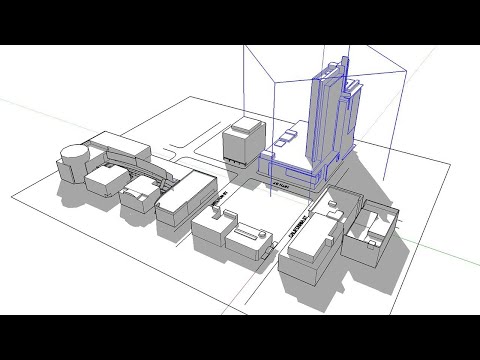
A lot of professional 3D modeling work relates to architectural projects. For large scale developments, there is usually a site development or campus development element in addition to the buildings and other structures. Good site modeling is critical to creating an acceptable model for client projects because the environment needs to complement the structures.

This video comes directly from SketchUp & walks you through the steps to create a site model. Some highlights are how to use a mix of Google Earth & Google Maps views to understand the site; modeling new buildings from scratch; and creating utility scenes for studying.

You expect an official SketchUp tutorial to be pretty sweet and this one doesn’t disappoint. If you’re not into architectural rendering, then this may not be that fun to you, but I think most people doing models will appreciate the techniques and how he shows the capabilities of SketchUp.

Site Modeling in SketchUp

If you haven’t already, then make sure you subscribe to the SketchUp YouTube channel.

https://www.fluidray.com/wp/wp-content/uploads/2016/03/Site-Modeling-in-SketchUp-YouTube.png 430 771 nicola /wp/wp-content/uploads/2019/09/siteLogo4.png nicola2016-03-23 23:00:152016-03-05 23:43:42Watch Site Modeling In SketchUp Tutorial Video

Watch How to Create Thai Temple Model in SketchUp Pro 2015

March 17, 2016/in 3D Rendering, Architecture, Managing Assets, Materials, Tutorials & Training

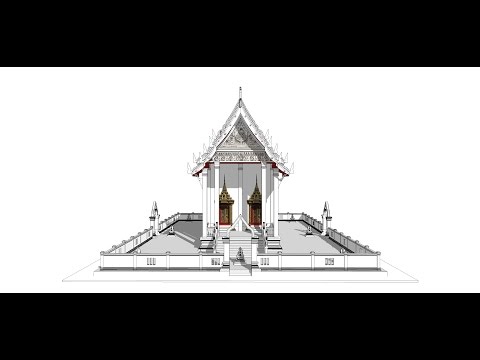
Building architectural models from the ground up takes imagination, an eye for detail, and a solid understanding of your tools. In this video, we see a Thai Temple developed in SketchUp 2015 with the addition all the shapes, dimensions, spacing, materials and textures shown.

The video, from JMsketch04’s YouTube channel. It’s longer than most of the videos we share (38:03), but it’s worth the time.

I especially like the order of the modeling with a good use of library assets and a consistent workflow. If you’ve ever tried building a complex models or ones with lots of assets, then you know that you need an efficient process to make sure everything comes together and avoid having to redo work later.

If you’re new to SketchUp modeling or want to learn how to build models more efficiently, then checkout this video.

Sketchup create 3d Model thai temple

https://www.fluidray.com/wp/wp-content/uploads/2016/03/Sketchup-pro-2015-How-to-Create-thai-temple-model-YouTube.png 424 765 nicola /wp/wp-content/uploads/2019/09/siteLogo4.png nicola2016-03-17 14:20:182016-03-05 23:21:38Watch How to Create Thai Temple Model in SketchUp Pro 2015
Page 1 of 3123
Search Search
Free Demo
Try FluidRay
FREE for 10-days
Download Now

Categories

  • 3D Rendering
  • Animation
  • Architecture
  • Basic UI
  • Compatibility
  • Industrial Design
  • Interior Design
  • Jewelry Design
  • Lighting
  • Managing Assets
  • Materials
  • Misc
  • News
  • Nodes
  • Obsolete
  • Plugins-Integrations
  • Post-Processing
  • Product Design
  • Rhino
  • Rhino
  • SketchUp
  • Software Releases
  • Tutorials & Training
  • Uncategorized

Recent Posts

  • Top 5 Tips for a Professional Interior Design Rendering August 28, 2021
  • FluidRay: Our 10 Favorite Kitchen Renderings July 24, 2021
  • How to Render Animations in FluidRay June 10, 2021
  • Learn How to Master a Rendering Tool – FAST! May 24, 2021
  • FluidRay: Our 10 Favorite Bedroom Interior Renderings April 21, 2021

Archives

© Copyright Fluid Interactive Inc. 2025 | All Rights Reserved.
  • Link to X
  • Link to Facebook
  • Link to Instagram
  • Link to Youtube
  • Terms Of Service
  • EULA
  • Privacy Policy
Scroll to top Scroll to top Scroll to top

This site uses cookies. By continuing to browse the site, you are agreeing to our use of cookies.

Learn moreOK

Cookie and Privacy Settings


How we use cookies

We may request cookies to be set on your device. We use cookies to let us know when you visit our websites, how you interact with us, to enrich your user experience, and to customize your relationship with our website.

Click on the different category headings to find out more. You can also change some of your preferences. Note that blocking some types of cookies may impact your experience on our websites and the services we are able to offer.

Essential Website Cookies

These cookies are strictly necessary to provide you with services available through our website and to use some of its features.

Because these cookies are strictly necessary to deliver the website, refusing them will have impact how our site functions. You always can block or delete cookies by changing your browser settings and force blocking all cookies on this website. But this will always prompt you to accept/refuse cookies when revisiting our site.

We fully respect if you want to refuse cookies but to avoid asking you again and again kindly allow us to store a cookie for that. You are free to opt out any time or opt in for other cookies to get a better experience. If you refuse cookies we will remove all set cookies in our domain.

We provide you with a list of stored cookies on your computer in our domain so you can check what we stored. Due to security reasons we are not able to show or modify cookies from other domains. You can check these in your browser security settings.

Other external services

We also use different external services like Google Webfonts, Google Maps, and external Video providers. Since these providers may collect personal data like your IP address we allow you to block them here. Please be aware that this might heavily reduce the functionality and appearance of our site. Changes will take effect once you reload the page.

Google Webfont Settings:

Google Map Settings:

Google reCaptcha Settings:

Vimeo and Youtube video embeds:

Accept settingsHide notification only